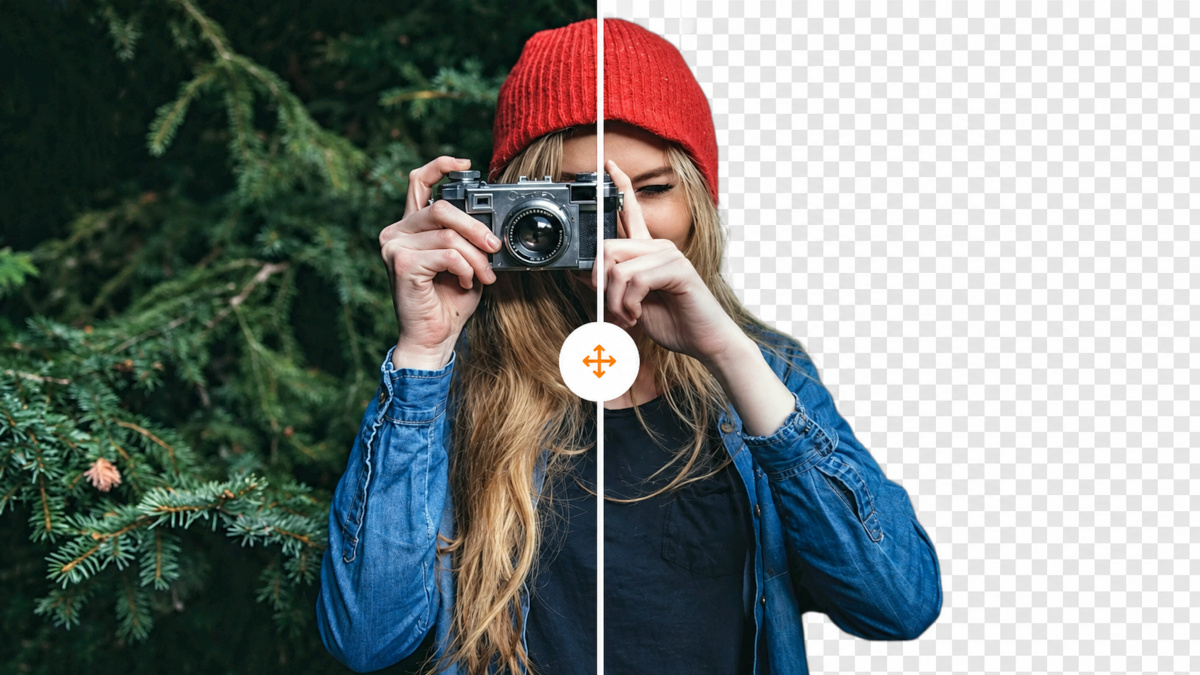
How to remove the background from an image (and get clean edges)
 Tomas Rohlena
· 3 min read
A practical workflow for perfect cut-outs: source image, AI pass, area selection, brush refinement, backgrounds and export.
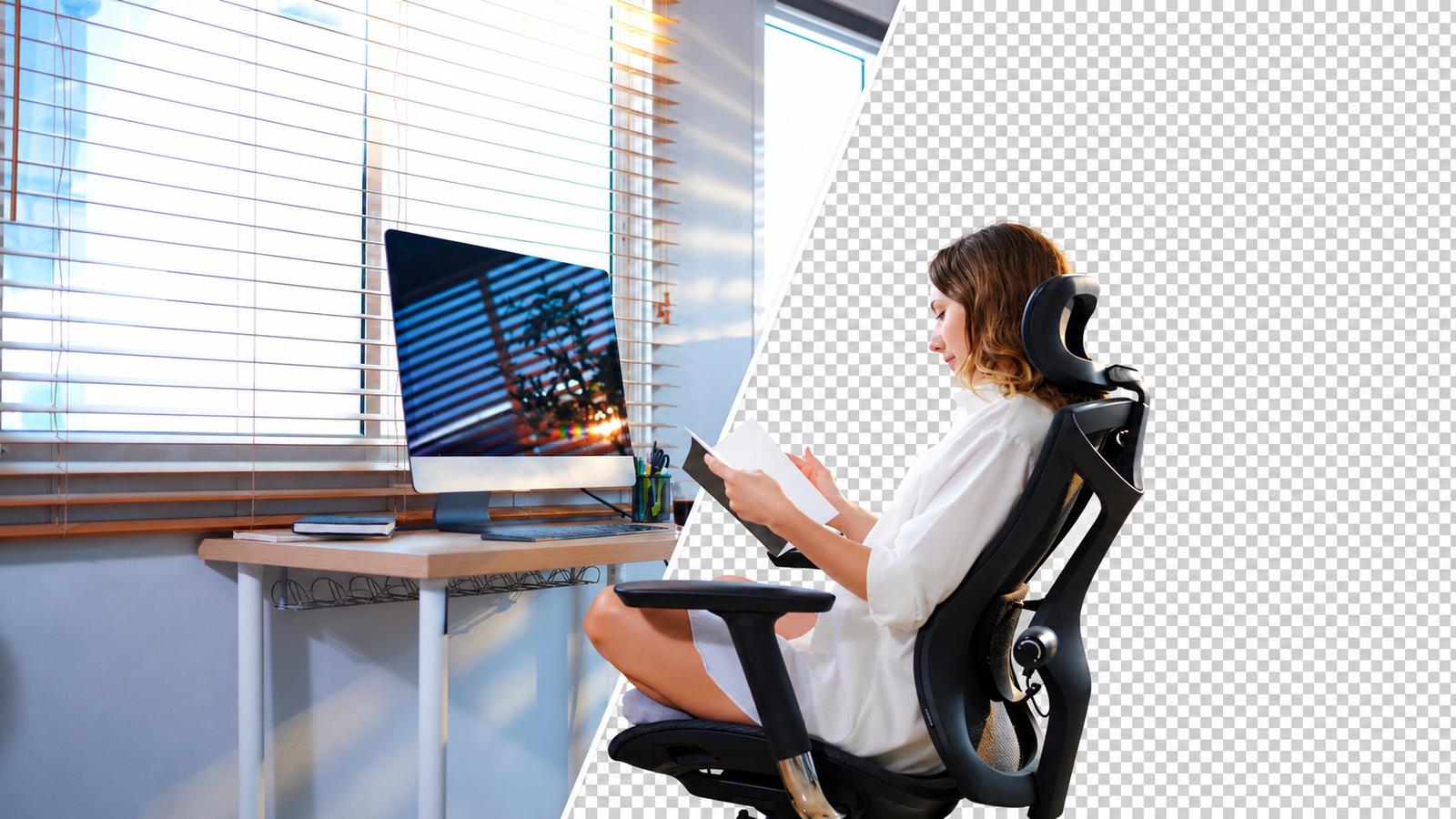
Removing the background from a photo used to mean an hour with the pen tool. Today an AI model does the heavy lifting in about a second – and you only step in for the last few percent. This guide shows the whole workflow on bgcut.net, from upload to a catalogue-ready PNG, plus the tricks that make the difference on hair, glass and busy backgrounds.
1. Start with the best possible source image
The model can only separate what it can see. Three things help enormously:
- Contrast between subject and background. A dark jacket in front of a dark wall is hard for humans too.
- Sharp focus on the subject. Motion blur mixes foreground and background pixels.
- Resolution. Upload the original file; bgcut.net keeps up to 30 megapixels and the HD download is pixel-for-pixel.
2. Upload and let the AI run
Drag the photo onto the upload area at bgcut.net, paste it from the clipboard or enter an image URL. The fast model returns a preview in roughly one second. For complicated edges switch the model to High quality in the editor sidebar and click re-run – it takes longer but resolves fine hair and fur much better.
3. Tell the AI where the subject is
If the photo contains several candidates – two people, a product next to a plant – tick Let me select the subject area first before uploading, or click Select area in the editor. Draw a rectangle around the subject; everything outside is discarded and the model concentrates on the selection. This single step fixes most "it kept the wrong thing" results.
4. Refine with the brush
Two brushes are all you need: Restore paints original pixels back, Erase removes them. Use a large soft brush for big areas and shrink it with the [ key for edges. Undo is Ctrl+Z. Your edits are kept with the image, so you can come back later.
5. Pick a background and crop
Transparent PNG is the default. For marketplaces that require white (Amazon, eBay) choose the white swatch and JPG; for social media try one of the pastel colours or upload your own photo. Crop to subject trims empty space, and the margin field adds breathing room.
6. Download in the right size
A free account includes five 640 px downloads per month – fine for thumbnails and avatars. HD downloads use the full resolution and cost one credit per image; changing the background afterwards is free. Need hundreds of images? The bulk tool processes up to 100 files at once and the API does the same from your own code.
FAQ
Why are the edges of hair slightly transparent?
That is intentional: semi-transparent edge pixels blend naturally with any new background. If you want hard edges, lower the feather value or use the erase brush.
Can I remove the background from a logo or a drawing?
Yes – the general model handles graphics, and the result is a clean transparent PNG.
Are my photos private?
Images are stored under random paths, only you can access them, and they are deleted automatically (2 hours for visitors, 30 days for accounts).
Tomas Rohlena
Tomas Rohlena is an experienced specialist in SEO, website development, online portals, and digital applications who combines strong technical expertise with a deep understanding of online marketing and the operation of web-based projects. Thanks to many years of hands-on experience, he not only optimizes websites for maximum search engine visibility but also designs effective strategies to improve conversions and ensure the long-term sustainability of online projects.